Home › Setup Guide

IBO Player setup guide for MaxifyTV

IBO Player is the only application MaxifyTV supports, and it is the reason our support desk can solve almost anything in one message. This is the complete walkthrough — installation on every platform, playlist activation, and the settings worth changing on day one.

Why IBO Player, and nothing else

IBO Player is built by the IBODEV team and ships for virtually every platform you might own — Android, Windows, macOS, Amazon Fire TV, and, crucially, the closed operating systems on LG and Samsung televisions. That last point is what settled the decision for us. Non-Android smart TVs are the hardest hurdle in this industry, and IBO Player clears it with a native app in both manufacturers' stores.

It is worth knowing the trade-offs up front. There is no recording function and no multi-screen mode. The app also uses remote playlist activation, meaning your line is paired through the IBO portal rather than typed into the television. In practice that is a convenience — it is why we can activate your line for you from Charlotte while you sit on the sofa.

A note on the app licence. IBO Player gives new installations a short five-day evaluation window, after which the developer charges a small one-off licence fee (roughly five dollars for a year, ten for lifetime). That fee goes to IBODEV, not to MaxifyTV, and is separate from your subscription.

Installing on Android phones, tablets and TV boxes

  1. Download the IBO Player installation file from the developer's official website.
  2. Android will warn you that the file came from outside the Play Store. This is expected for sideloaded builds — choose Download anyway.
  3. Open the downloaded file and tap Install.
  4. Once installed, open the app. An introductory screen explains the basics; we cover playlist pairing further down this page.
  5. The dashboard loads and the app is ready.

Installing on Windows

The Windows build requires Windows 10 or newer and is compiled for 64-bit systems.

  1. Download the Windows installer.
  2. Windows SmartScreen will interrupt because the file did not come from the Microsoft Store. Click More info, then Run anyway.
  3. Work through the installer: Next, optionally tick the desktop shortcut, Next again, then Install.
  4. Click Finish to launch IBO Player.

Installing on Amazon Fire TV Stick

Fire OS blocks browser downloads, so the Downloader utility does the sideloading. The condensed version is below; the fully illustrated version lives on our Fire TV Stick setup page.

  1. From the Fire TV home screen, open Find › Search and type Downloader. Install it.
  2. Go to Settings › My Fire TV › Developer Options and switch Apps from Unknown Sources to ON. If Developer Options is missing, open About and press select on Fire TV Stick seven times.
  3. Open Downloader, click the URL box and enter the official IBO Player downloader code: 511693. Press Go.
  4. Let the download finish, then click Install.
  5. Delete the leftover installation file when prompted — it frees space and serves no further purpose.

Installing on macOS

  1. Download the macOS build and open it, then drag the icon into your Applications folder.
  2. Launch the app from Launchpad. macOS will refuse the first launch because the app came from outside the App Store.
  3. Open System Settings › Privacy & Security, scroll to the blocked-app notice and choose Open Anyway.
  4. Confirm Open Anyway once more. The choice is permanent; future launches go straight through.

Installing on LG and Samsung smart TVs

No sideloading required — both manufacturers carry the app natively.

  1. Open the LG Content Store or the Samsung Apps store on your television.
  2. Use the search icon and type IBO Player.
  3. Pick the correct result. Several similarly named apps exist; you want the one titled exactly “Ibo Player”.
  4. Select Install, then Launch.
  5. A welcome message appears on first run. Move on to playlist activation below.
Activation

Pairing your MaxifyTV playlist

IBO Player uses remote activation. Your credentials are attached to the device through the IBO portal rather than typed into the television — which means we can do it for you.

Step 1 — find your Device Info

Open IBO Player and select the profile icon on the dashboard. The top-left Device Info panel shows two values: a MAC address and a device key. Write both down exactly as displayed — a single wrong character blocks activation.

Step 2 — log in to the playlist portal

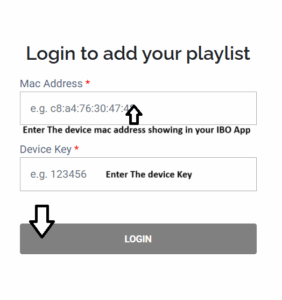
The IBO portal asks for that same MAC address and device key to open the playlist management screen. Enter both and sign in.

IBO Player portal login screen asking for a MAC address and device key

Step 3 — add the playlist

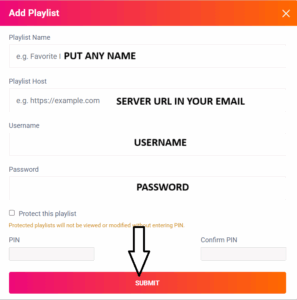
Choose Add Playlist and complete the fields: a playlist name of your choosing, the playlist URL we sent you on WhatsApp, and an optional XMLTV EPG address. Leave the EPG field empty and the app extracts guide data from the playlist automatically. Tick Protect this playlist if you want a PIN on it, then save.

IBO Player add playlist form with name, host, username and password fields

Step 4 — or let us do it

Send the MAC address and device key through our device activation form and we will pair the line from our end. Most requests are completed within minutes, and it removes any chance of a typo. Close and reopen the app once we confirm.

Settings worth changing immediately

Fix the Live TV layout

The default live screen style crowds channel names under the preview window and misaligns the guide. From the dashboard, click the screen icon beside the Wi-Fi symbol and switch the Live Screen Style. The alternate layout gives channel names room, tucks categories away and fits the preview and EPG properly. Press the left arrow on the remote whenever you want the category column back.

Favourites and search

In the channel list, press and hold on any channel and choose Add to drop it into favourites. A heart appears beside the name and the channel joins the favourites folder at the top of the category column. The search function sits in the bottom-left of the Live TV overview and scans every category at once — it matches specific terms, so partial words work better than guesses.

Parental control

Settings includes a PIN lock for the whole application. The factory PIN is 0000; enter that first, then set your own. If you forget the new PIN later, reset it from the IBO portal rather than reinstalling.

The dashboard buttons

  • Wi-Fi — shortcut to your device's wireless settings.
  • Live TV style — the layout toggle described above.
  • Main info — app version, device details and playlist status.
  • Settings — network, parental control, language (16 supported), cache and category management.
  • Data refresh — reloads the full playlist. This is the first thing to try when a channel looks missing.
  • Exit — closes the application cleanly.

Movies and series

The VOD section is deliberately plain and all the better for it. The default ordering shows the newest additions from our catalogue. Hold the select button on any title to add it to favourites; the controls in the top-right corner switch between categories, sort by date, rating or alphabet, and open search.

One device per subscription. Your MaxifyTV line activates on a single device at a time. If you replace a television or a stick, message the support desk and we will reset the MAC pairing free of charge. A second simultaneous screen needs its own line from the order page.

If something is not working

  1. Run a data refresh from the dashboard. This clears a stale playlist cache and resolves the majority of “missing channel” reports.
  2. Check your MAC and device key under App Info — one wrong character is the second most common cause.
  3. Test your connection speed. FHD wants about 8 Mbps sustained, 4K about 15 Mbps.
  4. Restart the app completely rather than backgrounding it, especially after we activate a line.
  5. Message us. The desk is open around the clock and answers in under five minutes on average.

Not a subscriber yet?

The whole guide above takes about ten minutes to work through, and the intro month costs $8.99. See the full channel line-up before you decide.

Order the intro month